> ## Documentation Index
> Fetch the complete documentation index at: https://dripart-feat-giscus-unauthenticated-handling.mintlify.site/llms.txt
> Use this file to discover all available pages before exploring further.
# Load3D - ComfyUI Built-in Node Documentation
> The Load3D node is a core node in ComfyUI for loading and previewing various 3D model files, supporting multi-format import and rich three-dimensional view operations.
The Load3D node is a core node for loading and processing 3D model files. When loading the node, it automatically retrieves available 3D resources from `ComfyUI/input/3d/`. You can also upload supported 3D files for preview using the upload function.
**Supported Formats**
Currently, this node supports multiple 3D file formats, including `.gltf`, `.glb`, `.obj`, `.fbx`, and `.stl`.
**3D Node Preferences**
Some related preferences for 3D nodes can be configured in ComfyUI's settings menu. Please refer to the following documentation for corresponding settings:
[Settings Menu - 3D](/interface/settings/3d)
Besides regular node outputs, Load3D has lots of 3D view-related settings in the canvas menu.
## Inputs
| Parameter Name | Type | Description | Default | Range |
| -------------- | -------------- | --------------------------------------------------------------------------------------------- | ------- | ----------------- |
| model\_file | File Selection | 3D model file path, supports upload, defaults to reading model files from `ComfyUI/input/3d/` | - | Supported formats |
| width | INT | Canvas rendering width | 1024 | 1-4096 |
| height | INT | Canvas rendering height | 1024 | 1-4096 |
## Outputs
| Parameter Name | Data Type | Description |
| ---------------- | -------------- | ---------------------------------------------------------------------------------------------- |
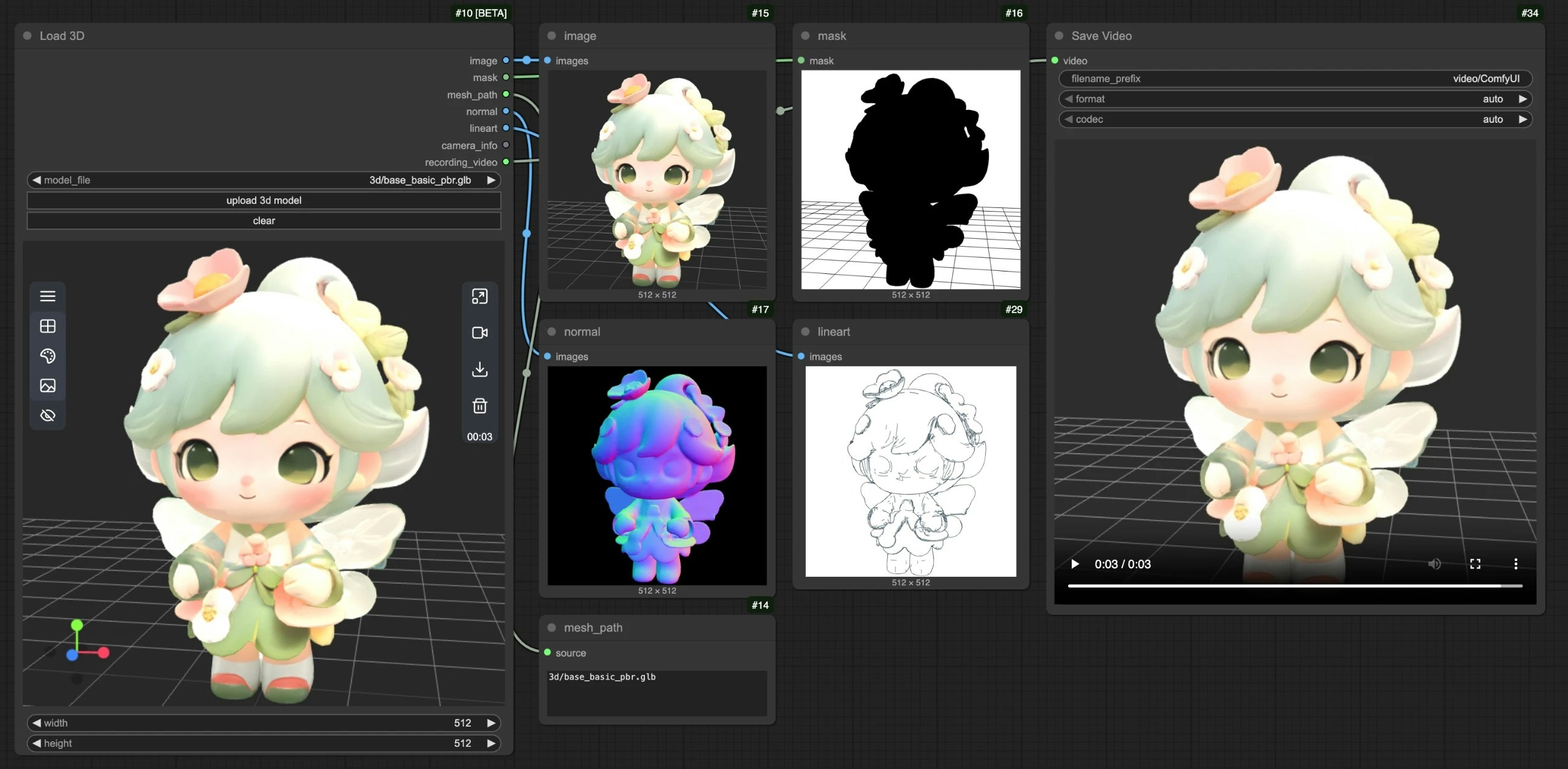
| image | IMAGE | Canvas rendered image |
| mask | MASK | Mask containing current model position |
| mesh\_path | STRING | Model file path |
| normal | IMAGE | Normal map |
| lineart | IMAGE | Line art image output, corresponding `edge_threshold` can be adjusted in the canvas model menu |
| camera\_info | LOAD3D\_CAMERA | Camera information |
| recording\_video | VIDEO | Recorded video (only when recording exists) |
All corresponding outputs preview
 ## Canvas Area Description
The Load3D node's Canvas area contains numerous view operations, including:
* Preview view settings (grid, background color, preview view)
* Camera control: Control FOV, camera type
* Global illumination intensity: Adjust lighting intensity
* Video recording: Record and export videos
* Model export: Supports `GLB`, `OBJ`, `STL` formats
* And more
## Canvas Area Description
The Load3D node's Canvas area contains numerous view operations, including:
* Preview view settings (grid, background color, preview view)
* Camera control: Control FOV, camera type
* Global illumination intensity: Adjust lighting intensity
* Video recording: Record and export videos
* Model export: Supports `GLB`, `OBJ`, `STL` formats
* And more
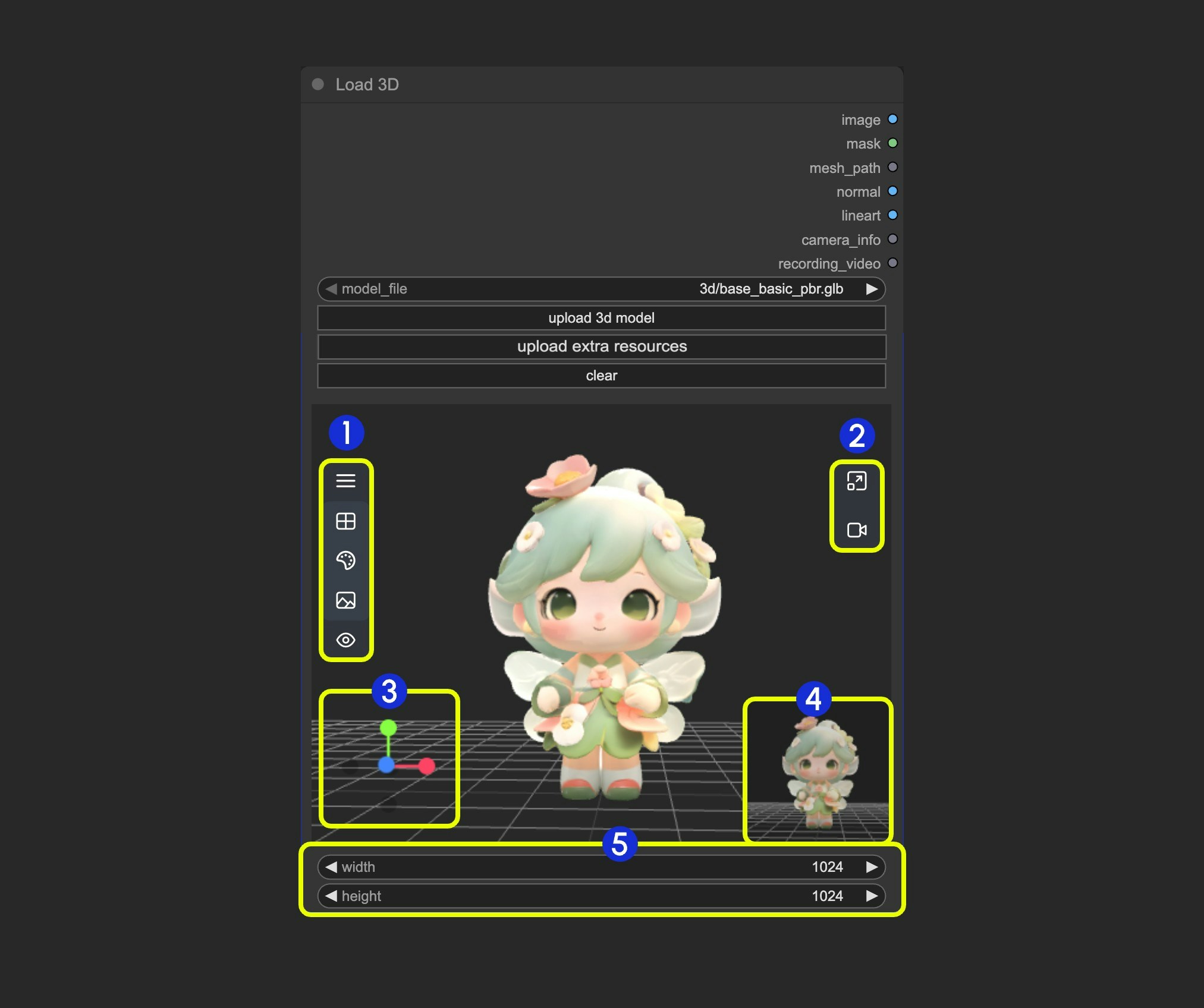 1. Contains multiple menus and hidden menus of the Load 3D node
2. Menu for `resizing preview window` and `canvas video recording`
3. 3D view operation axis
4. Preview thumbnail
5. Preview size settings, scale preview view display by setting dimensions and then resizing window
### 1. View Operations
View control operations:
* Left-click + drag: Rotate the view
* Right-click + drag: Pan the view
* Middle wheel scroll or middle-click + drag: Zoom in/out
* Coordinate axis: Switch views
### 2. Left Menu Functions
1. Contains multiple menus and hidden menus of the Load 3D node
2. Menu for `resizing preview window` and `canvas video recording`
3. 3D view operation axis
4. Preview thumbnail
5. Preview size settings, scale preview view display by setting dimensions and then resizing window
### 1. View Operations
View control operations:
* Left-click + drag: Rotate the view
* Right-click + drag: Pan the view
* Middle wheel scroll or middle-click + drag: Zoom in/out
* Coordinate axis: Switch views
### 2. Left Menu Functions
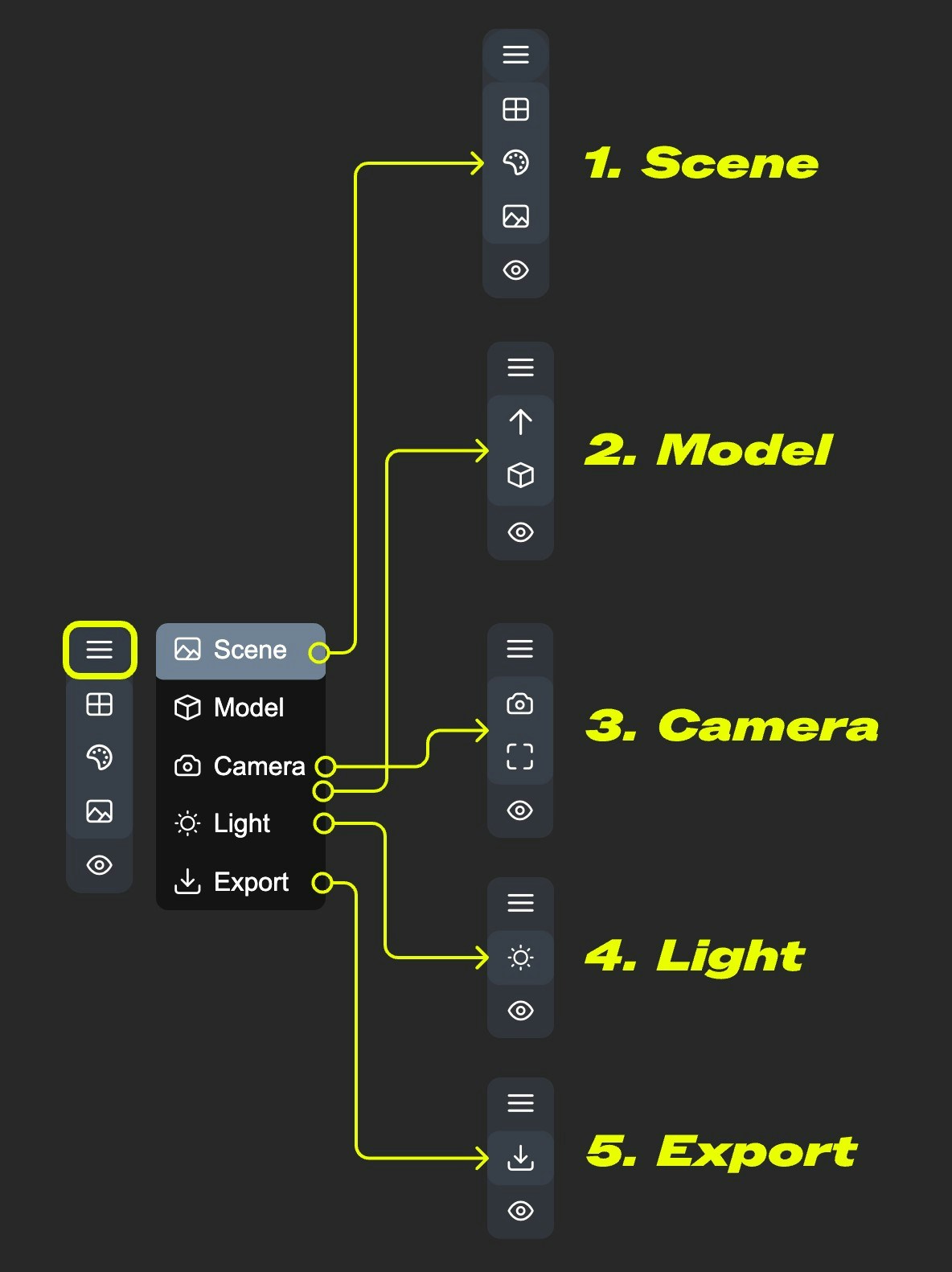 In the canvas, some settings are hidden in the menu. Click the menu button to expand different menus
* 1. Scene: Contains preview window grid, background color, preview settings
* 2. Model: Model rendering mode, texture materials, up direction settings
* 3. Camera: Switch between orthographic and perspective views, and set the perspective angle size
* 4. Light: Scene global illumination intensity
* 5. Export: Export model to other formats (GLB, OBJ, STL)
#### Scene
In the canvas, some settings are hidden in the menu. Click the menu button to expand different menus
* 1. Scene: Contains preview window grid, background color, preview settings
* 2. Model: Model rendering mode, texture materials, up direction settings
* 3. Camera: Switch between orthographic and perspective views, and set the perspective angle size
* 4. Light: Scene global illumination intensity
* 5. Export: Export model to other formats (GLB, OBJ, STL)
#### Scene
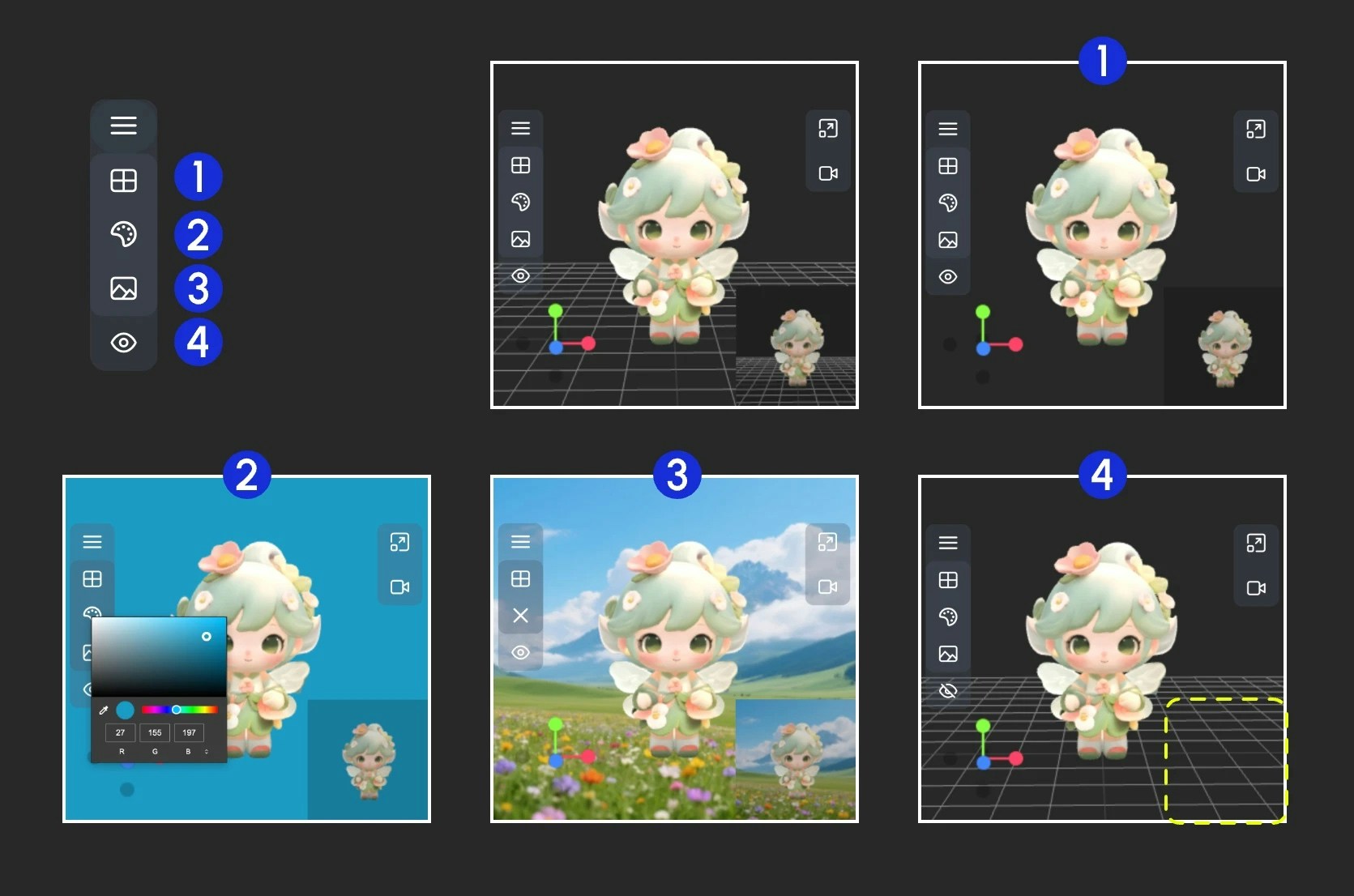 The Scene menu provides some basic scene setting functions
1. Show/Hide grid
2. Set background color
3. Click to upload a background image
4. Hide the preview
#### Model
The Scene menu provides some basic scene setting functions
1. Show/Hide grid
2. Set background color
3. Click to upload a background image
4. Hide the preview
#### Model
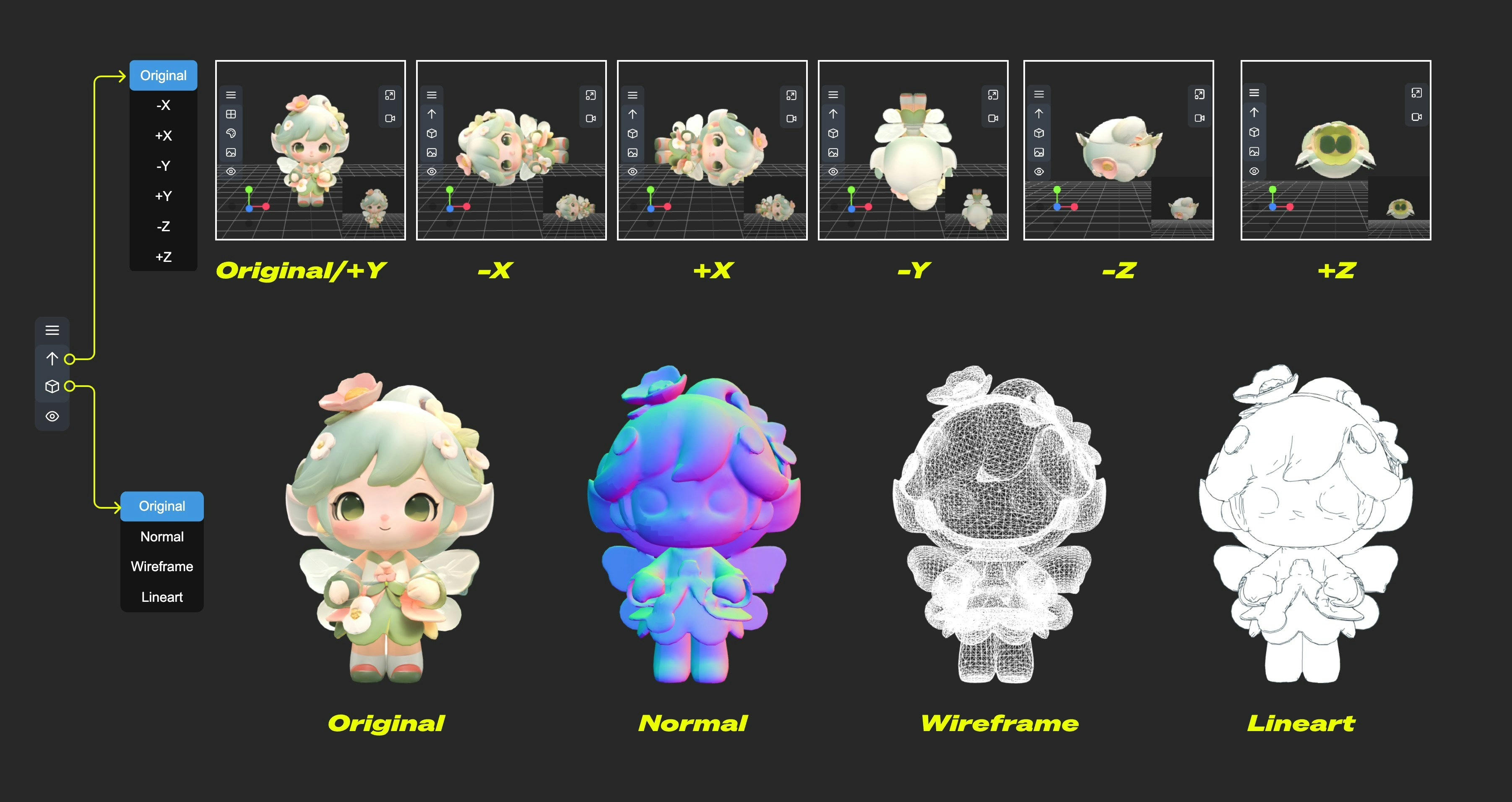 The Model menu provides some model-related functions
1. **Up direction**: Determine which axis is the up direction for the model
2. **Material mode**: Switch model rendering modes - Original, Normal, Wireframe, Lineart
#### Camera
The Model menu provides some model-related functions
1. **Up direction**: Determine which axis is the up direction for the model
2. **Material mode**: Switch model rendering modes - Original, Normal, Wireframe, Lineart
#### Camera
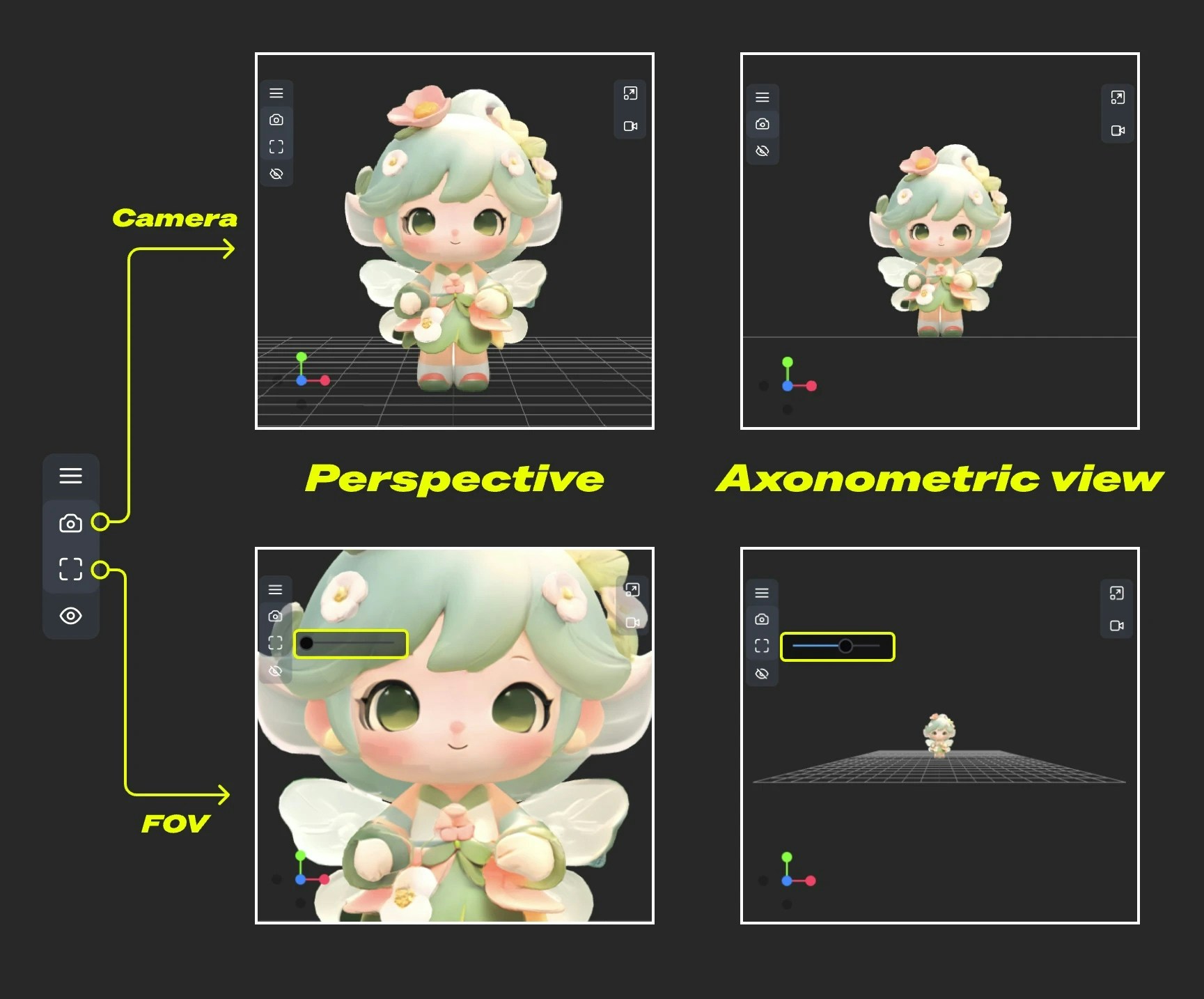 This menu provides switching between orthographic and perspective views, and perspective angle size settings
1. **Camera**: Quickly switch between orthographic and orthographic views
2. **FOV**: Adjust FOV angle
#### Light
This menu provides switching between orthographic and perspective views, and perspective angle size settings
1. **Camera**: Quickly switch between orthographic and orthographic views
2. **FOV**: Adjust FOV angle
#### Light
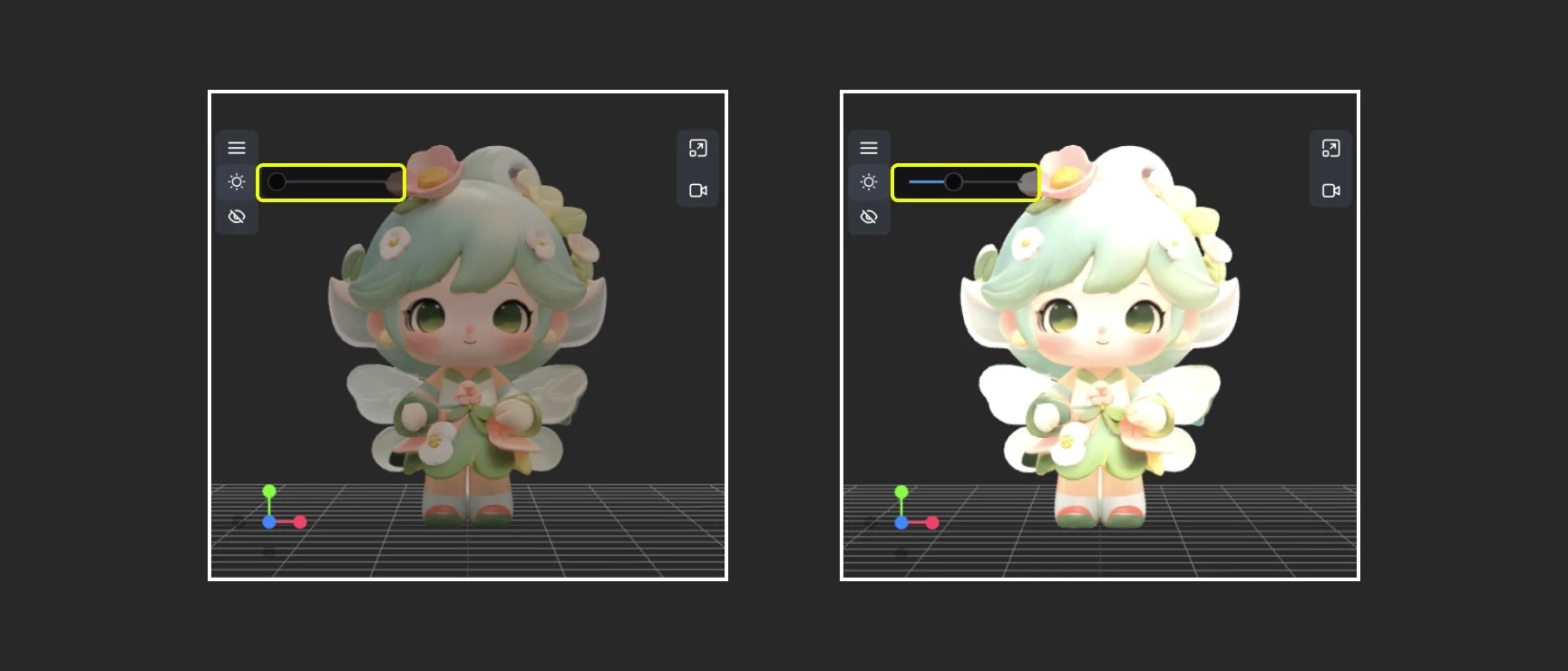 Through this menu, you can quickly adjust the scene's global illumination intensity
#### Export
Through this menu, you can quickly adjust the scene's global illumination intensity
#### Export
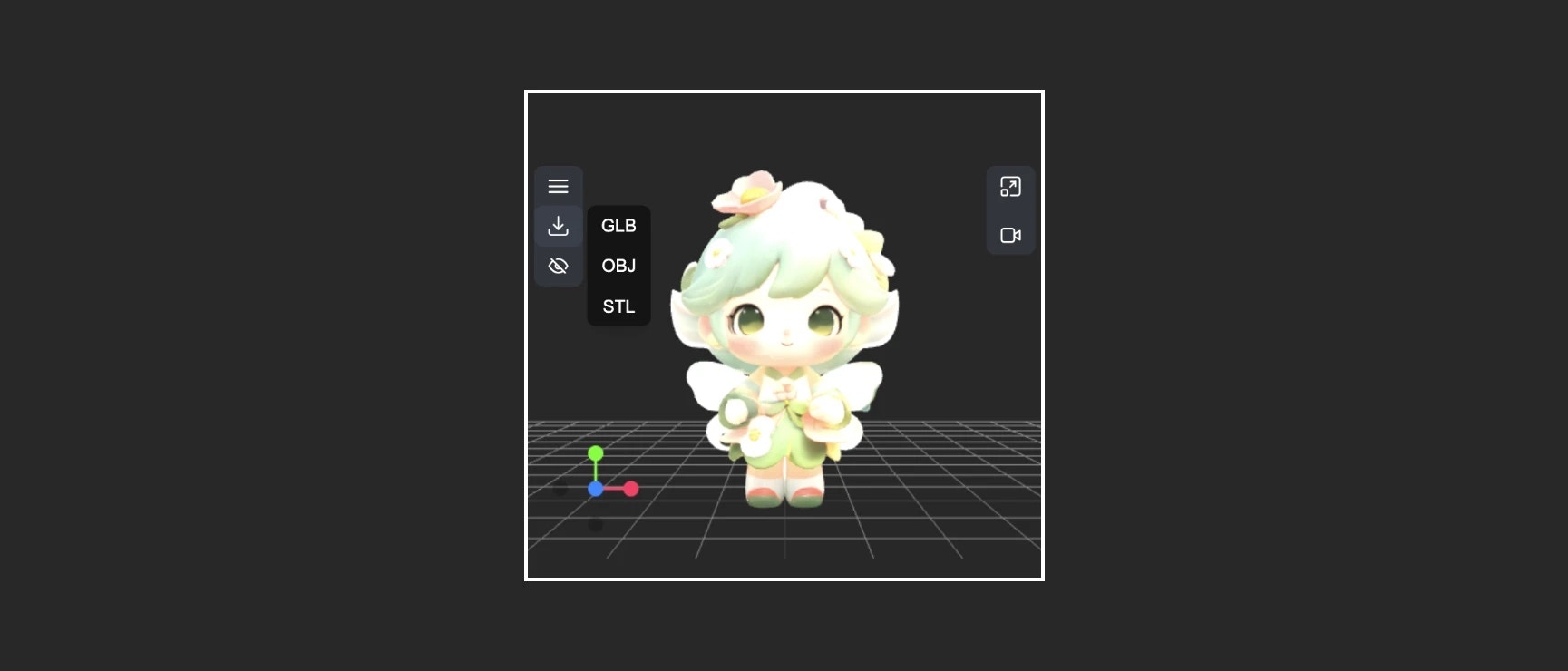 This menu provides the ability to quickly convert and export model formats
### 3. Right Menu Functions
The right menu has two main functions:
1. **Reset view ratio**: After clicking the button, the view will adjust the canvas rendering area ratio according to the set width and height
2. **Video recording**: Allows you to record current 3D view operations as video, allows import, and can be output as `recording_video` to subsequent nodes
This menu provides the ability to quickly convert and export model formats
### 3. Right Menu Functions
The right menu has two main functions:
1. **Reset view ratio**: After clicking the button, the view will adjust the canvas rendering area ratio according to the set width and height
2. **Video recording**: Allows you to record current 3D view operations as video, allows import, and can be output as `recording_video` to subsequent nodes